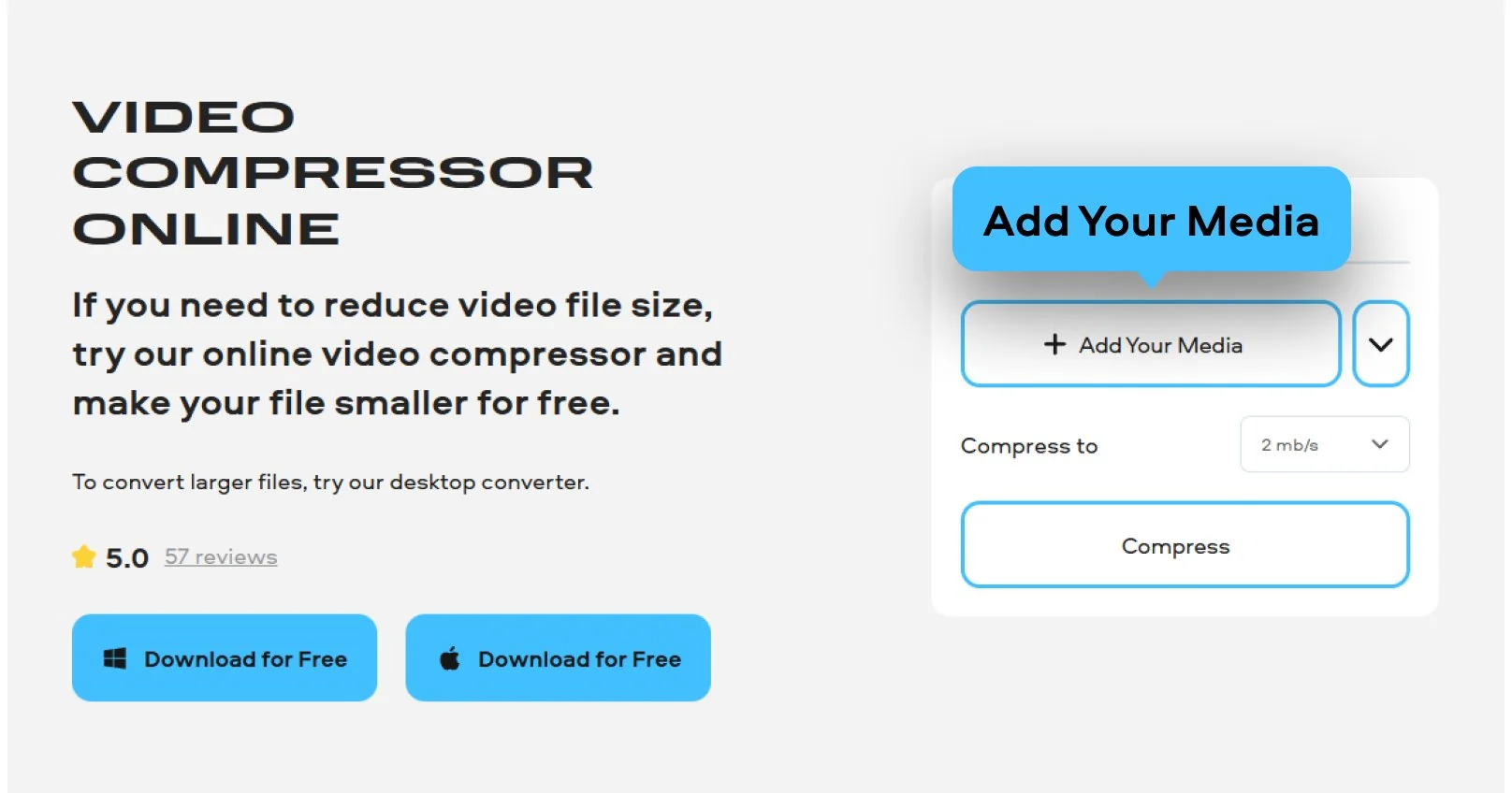
Step 1. Add your file to the tool
Click Add Your Media and choose the video for compressing. Remember that the online compressor from Movavi only supports MP4, MOV, MKV, AVI, and WMV formats. Besides, your file shouldn’t be larger than 500 MB.
Need to compress a video online for quick sharing? Our free video compressor runs online in the browser. You can use it to compress MP4s online and other video file formats as well as to reduce the file size of videos for sharing. The app also works for large video files and without extra steps. In addition to the online video compressor, there is also an online video converter for changing the video file format. To shrink videos in specific video file formats, you can also use our tool to compress WMV files online.
Click Add Your Media and choose the video for compressing. Remember that the online compressor from Movavi only supports MP4, MOV, MKV, AVI, and WMV formats. Besides, your file shouldn’t be larger than 500 MB.
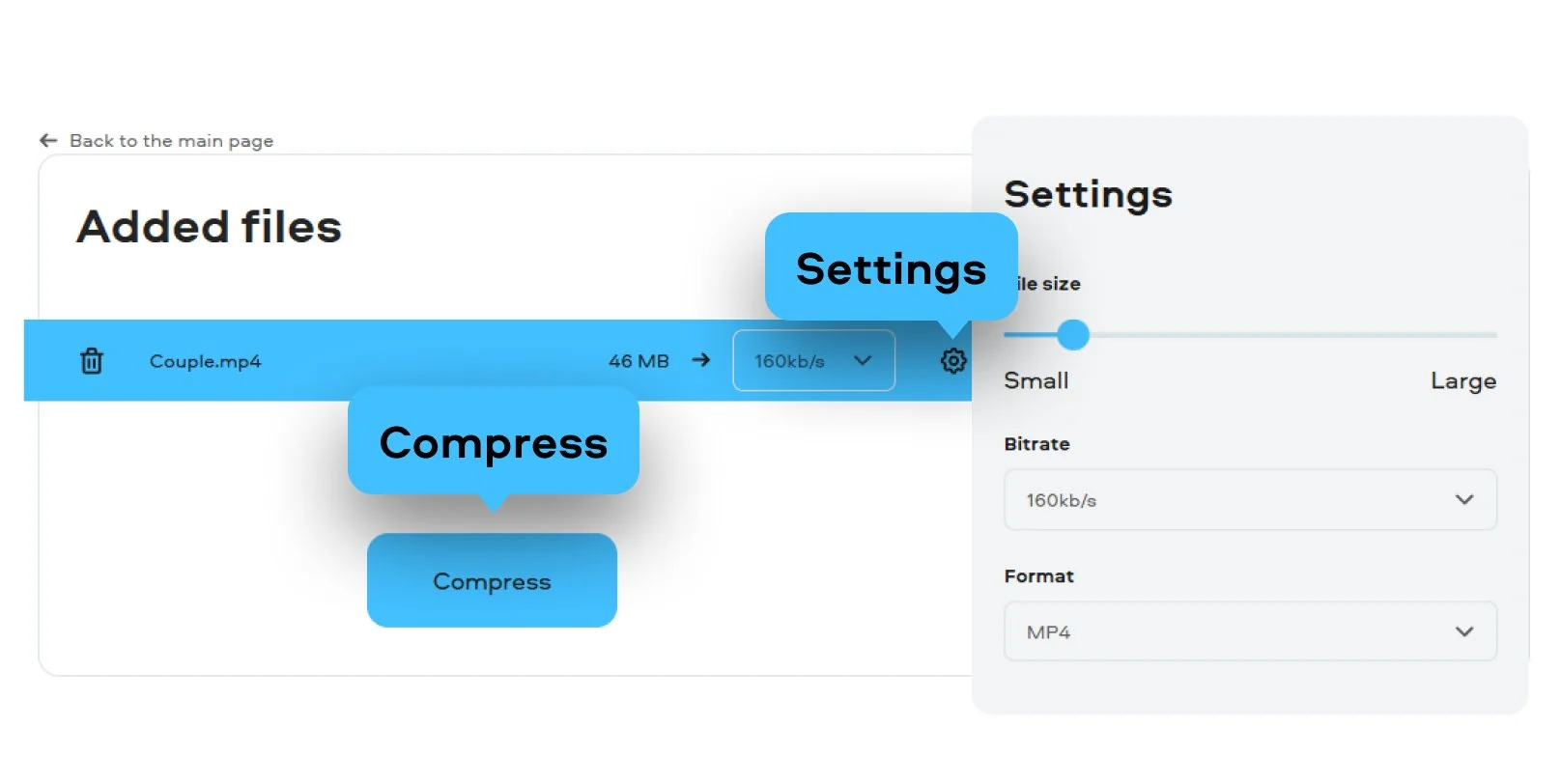
Select the level of compression according to your needs.
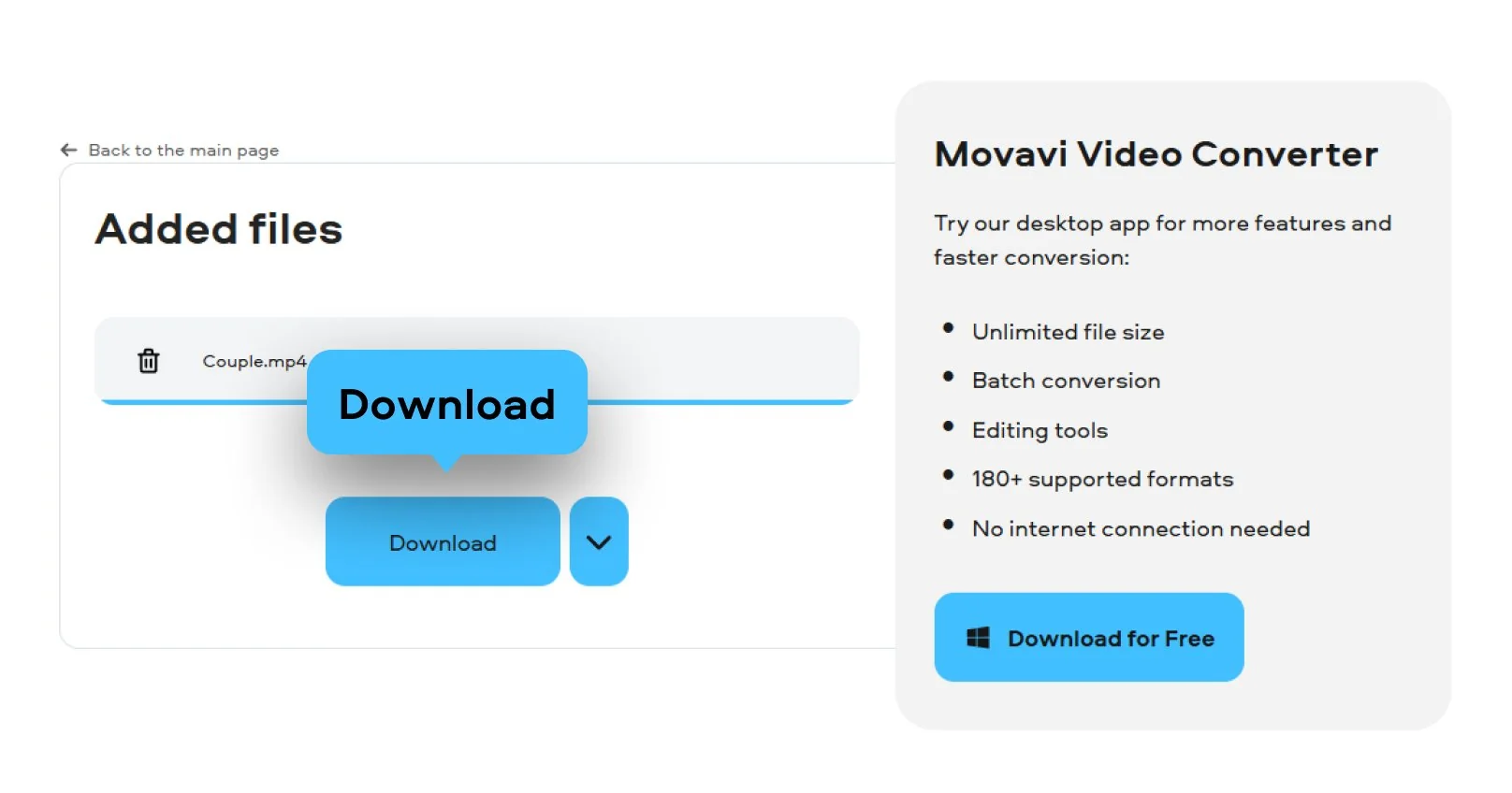
Choose an export option in the appeared window and save your video.
3G2, 3GP, ASF, AVI, DVD (NTSC), DVD (PAL), FLV, M1V, M2T, M2TS, M2V, M4V, MJPEG, MKV, MOV, MP4, MPEG, MPEG-TS, MPG, MTS, MXF, OGV, SWF, TOD, TS, VOB, WebM, WMV, WTV
Use our fast video size reducer for desktop for large files like HD movies, batches of clips, or footage. Most free online video compressors are too slow for large files such as HD movies, batches of clips or footage, and will time out. A desktop tool for video compression is much faster for such big files. It can also compress all your videos in one run, in many formats like MKV, MOV, AVI, FLV, etc. Make your videos a lot smaller without losing too much quality. It can handle any file size and doesn’t have the limitations of a browser.
Open the app and click Add Media, then choose Add video. This video file compressor lets you pick one clip or many at once. This is perfect if you need to perform batch video compression to save yourself some time.
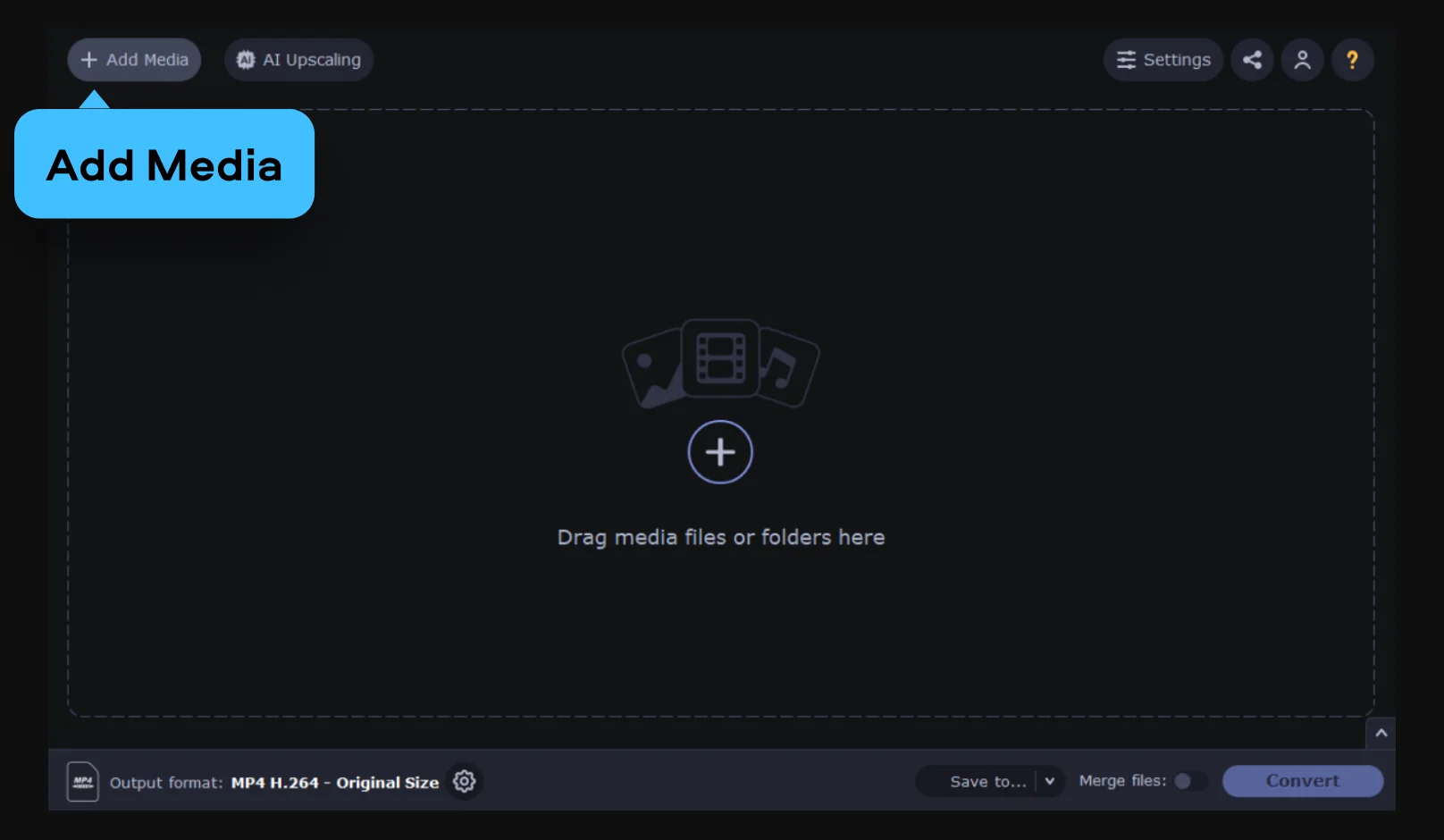
Select your target format from the presets at the bottom. To hit a specific goal, click Compress file in the output info area. This lets you adjust video bitrate or move a slider to compress your video to 25 MB or any other target.
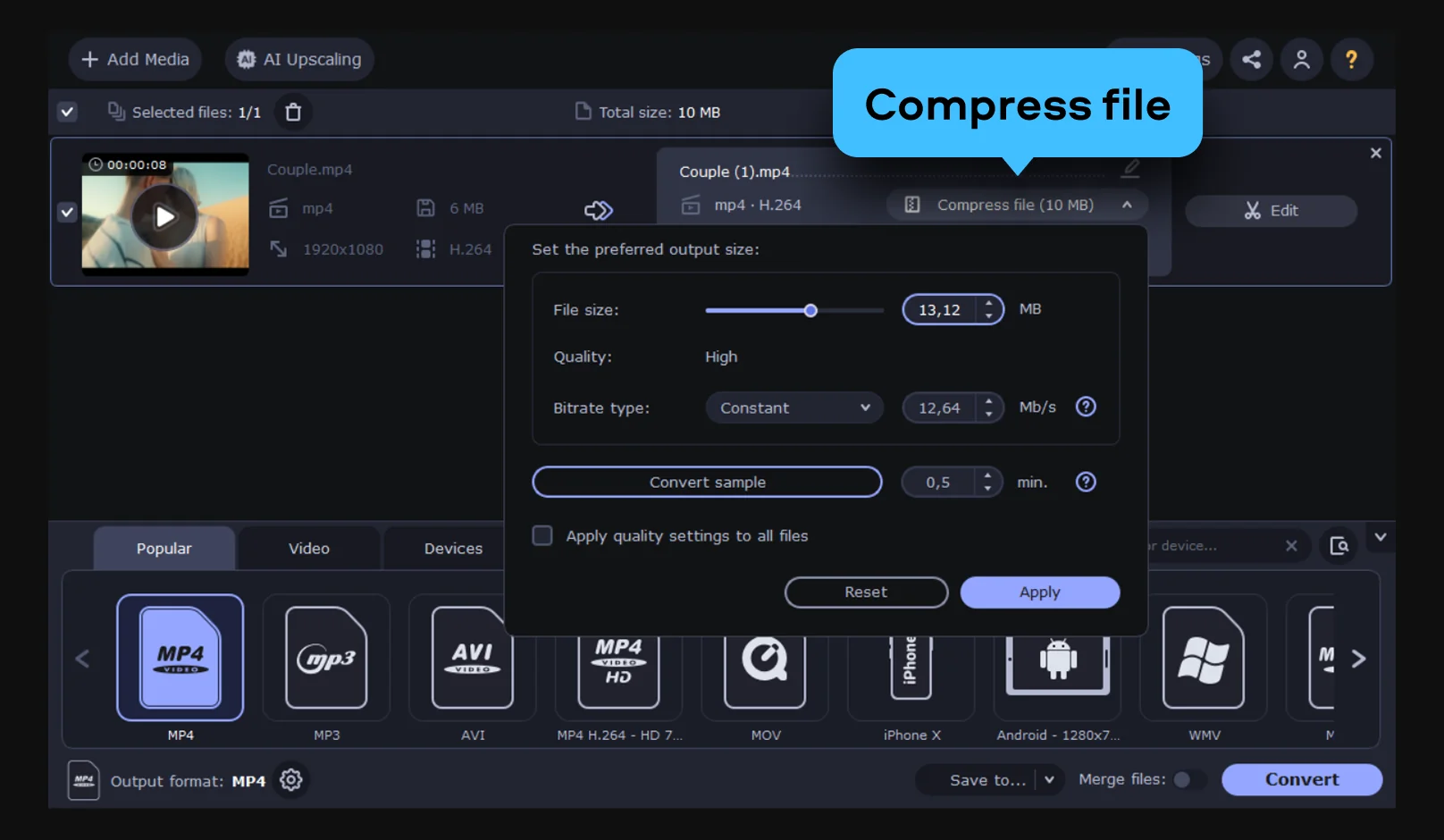
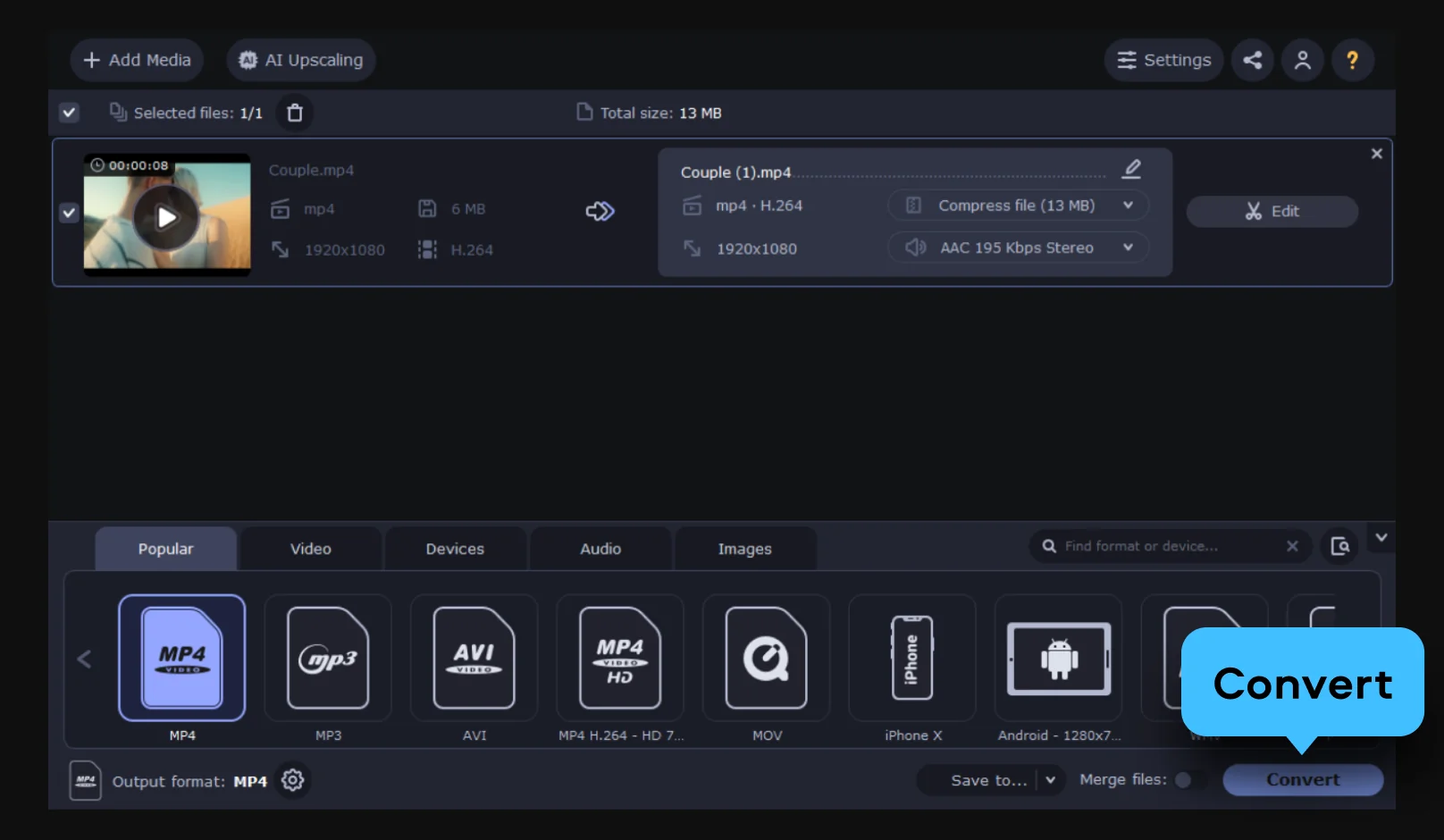
Click the Save to button to choose your destination folder, then simply hit Convert.
3GP, 3G2, 3GP2, 3G2P, 3GPP, ASF, AVCHD, AVI, DivX, DVD, FLV, F4V, M2TS, TS, MTS, M2S, M2T, MKV, MKM, MOV, QT, MP4, M4V, MPG, MPEG, MPE, M2P, M1V, M2V, VOB, DAT, MOD, TOD, VRO, IFO, MXF, OGG, OGV, OGM, RM, RMVB, RAM, RAX, RMX, SWF, WebM, WMV, WTV, AMV, AV1, AVS, BIK, BNK, CAVS, CDG, DPG, DV1394, DVR-MS, EA, FFM, FILM, FILM_CPK, FLC, FLI, FLM, FLT, FLX, GXF, H.261, IVR, MJ2, ML20, MPEG-3, MTV, MVI, MXG, NC, NSV, NUT, NUV, R3D, REC, RVA, RMS, RPL, RTSP, SDP, SMK, SXA, THD, THP, TRP, VFW, WM, WMVHD, WPG
Slideshow maker
Change video speed
Video cutter
Video resizer
Mute a video
Video looper
19 Best Free Video Compressors in 2026 [Windows & Mac]
MOV Compressor: Reduce MOV File Size Online & Free | Movavi
GIF Compressor – Online & Free
How to Compress a Video on a Mac – 6 Best Ways [2026]
AVI Compressor: Reduce AVI File Size Online & Free | Movavi
MP4 Compressor: Reduce MP4 File Size Online&Free | Movavi
MKV Compressor: Reduce MKV File Size Online&Free | Movavi
We’re the #1 choice for millions of people from all around the world. Join our thriving community and create stunning content with incredible ease.
70M+


All compression trims some data, but you can get remarkably close to lossless compression. Use a high-quality preset and the video codec H.264. Your footage will stay sharp enough that you won't even notice a difference.
MP4 is the clear winner. It is a super efficient format that plays well with any MP4 compressor. Your clips stay lean without sacrificing clarity. It works on basically every phone, laptop, or social app.
Absolutely. It is a safe video compressor that takes your privacy seriously. Files move through an encrypted connection. They are wiped from the servers shortly after you are done.
Typically, email services like Gmail, Outlook, and Yahoo Mail limit attachments to 20-25 MB. For this reason, it is recommended to lower the resolution (e.g. from 1080p to 720p) and/or the bitrate and to use a more efficient codec. For very short video clips, a file size of around 10-15 MB is usually sufficient. Use H.264 instead of H.265 or ProRes when exporting a video for an email. However, even after compression, the file can still be too large. In such cases, it is better to upload the video to a file-sharing service (Google Drive, Dropbox, WeTransfer, etc.) and then to send a link to it in the email. This way, the video is not recompressed by the email provider and thus retains its original quality.
These apps usually have a 10 MB or 25 MB limit. You can resize a video online by dropping the resolution slightly. Slide the bar until you hit that sweet spot. This makes your video upload instantly without lagging.
Need more tools?
Bring your creative ideas to life with Movavi Video Converter – the all-in-one program.


1.5M+ users already subscribed to our newsletter